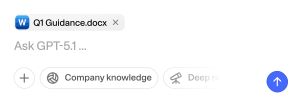
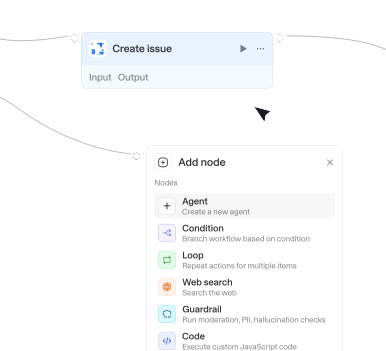
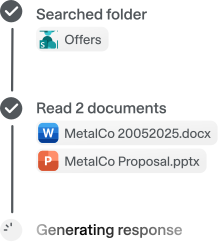
Wähle aus 56 verfügbaren Integrationen und 716 nativen Actions, um deine Agenten und Workflows zu erweitern.


Create presentation
Create a new blank Google Slides presentation (with one default slide) and optionally place it in a specific Drive folder; use this to start a new deck before adding slides or content. Returns the new presentationId (the ID needed by every other Google Slides action) plus the object ID of the initial slide, so capture them from the result and pass them to later calls rather than guessing.


Create project
Creates a new project in Asana. Requires a project name. Optionally accepts workspace GID from list_workspaces, team GID from get_teams_for_workspace, owner, color, privacy settings, and dates. Returns the created project with its GID

Create project
Creates a project on a board and phase. Requires a title, a board, and a phase; optionally sets a description, owner, start and end dates, and links to deals, persons, and organizations.
Create project task
Creates a task in a project. Requires a project and a title; optionally sets a description, an assignee, and a due date.



Create pull request
Creates an Azure Repos pull request to review and merge changes between branches.

Create record
Creates a new record in a Dataverse table and returns the created record including its generated primary key.

Create records
Creates one or more records in a table. Requires a base ID, table name, and an array of field values. Returns the created records with their IDs.


Create scheduling link
Creates a single-use scheduling link for an event type that can be shared with invitees.
Create slide
Add a new slide to a presentation with a chosen layout and, optionally, fill its title and body placeholders in the same step (no separate text action needed). Use it whenever you need to insert a slide into an existing deck. IDs: pass the target presentation's ID in presentationId; the action RETURNS the new slide's object ID (slideId) plus the auto-assigned title and body placeholder object IDs (titlePlaceholderId, bodyPlaceholderId, placeholderIds), which you should reuse to style or further edit those elements without re-fetching the presentation.

Create subitem
Creates a new subitem nested under a parent item. Requires a parent item ID and a name for the subitem. Returns the created subitem's ID and name.


Create table
Creates a new table from a cell range. Tables enable filtering, sorting, and structured references.

Create task
Creates a new task in Asana. Requires a task name. Optionally accepts workspace GID from list_workspaces, project GID from get_projects, assignee from get_users, due dates, and custom fields. Returns the created task with its GID

Create task
Creates a new task in a Planner plan or as a private To Do task. For Planner tasks, provide planId or planTitle. For private To Do tasks, set isPrivate=true or provide todoListName.

Create task
Creates a new item on a board with column values pre-filled. Requires a board ID, item name, and column values as JSON. Returns the created item's ID and name.
Create task story
Adds a comment to a task. Requires the comment text and a task GID from search_tasks or typeahead_search. Returns the created comment



Create trigger
Creates a new trigger for an integration. Triggers poll for events and activate workflows.

Create version
Creates a new release version in a Jira project (e.g., 'RELEASE - 1.1.0'). Use this as the first step in a release workflow: create the version, then bulk-update ticket fixVersions to it, then transition tickets to 'Released'. Requires Administer Projects permission.
Create version
Creates a new release version in a Jira project (e.g., 'RELEASE - 1.1.0'). Use this as the first step in a release workflow: create the version, then bulk-update ticket fixVersions to it, then transition tickets to 'Released'. Requires Administer Projects permission.
Create video
Embeds a YouTube or Google Drive video onto a slide in one step; use it to add a video player (YouTube is the common case) to an existing slide. ID flow: pass the target slide's OBJECT ID in slideId (not its number) and the presentation's ID in presentationId; the video's source id goes in `id`. Returns the created video element's object ID (as both objectId and videoObjectId) so you can immediately reposition, resize, or delete it without re-fetching the presentation.
Create wiki page
Creates a new Markdown page in an Azure DevOps wiki without replacing an existing page.
Create work item
Creates a work item in a project. Use list_work_item_types to see valid types such as User Story, Bug, Task, or Feature.


Delete custom object
Deletes (archives) a custom object record. The record goes to HubSpot's recycling bin and can be restored within 90 days.
Delete custom object association
Removes an association between a custom object record and another record.


Delete event
Deletes a calendar event by its ID. For recurring events: pass the series master ID to delete all occurrences, or pass a single occurrence ID to delete only that instance. Supports shared/delegated calendars: pass a colleague's email in 'Shared calendar owner' to act on their calendar (they must have granted you edit rights); leave it empty for your own calendar.


Delete object
Permanently deletes one or more slides and/or page elements (shapes, text boxes, images, tables, lines, charts) from a presentation by their object IDs, in a single atomic batch. Use it to undo or fix mistakes - e.g. remove a wrongly placed image, an extra slide, or a stray text box; deleting a slide also removes every element on it. Every ID you pass must be the exact object ID of something that already exists: get slide object IDs from get_presentation with outputFormat "map" (or the slideId/slideIds returned by create_slide / build_deck_from_outline), and element object IDs from the create_* action that made the element or from get_presentation (outputFormat "map" or "json"). Never invent an ID or pass a slide number. The batch is atomic: if any ID is invalid or missing, the whole call is rejected and nothing is deleted.

Delete permission grant
Revokes and deletes an entire delegated OAuth permission grant (oauth2PermissionGrant) by its grant ID.
Delete record
Deletes a record from a table. Requires a base ID, table name, and record ID. Returns confirmation of deletion.
Delete record
Deletes a Dataverse record by GUID from a specified entity set. This permanently removes the record.

Delete task
Moves a task to the Recycle Bin. The task can be restored later using the update_task action with restore=true.

Describe semantic view
Describes the metrics, dimensions, facts, and relationships on a Snowflake semantic view.
Describe table
Describes a single Dataverse table: its primary ID and name attributes plus its columns (logical name, type, required level). Use this to discover the exact column names before listing, creating, or updating records.
Disqualify lead
Add-on action (Dynamics 365 Sales) — requires the Sales app on the connected Dataverse environment. Disqualifies a lead by setting its state to Disqualified with a status reason such as Lost or No longer interested.
Download attachment
Gets detailed attachment data including name, download URL, view URL, and parent resource. Requires an attachment GID from get_attachments_for_object. Returns complete attachment information needed for accessing the file

Download attachment
Downloads a file attached to a Confluence page or blog post. Use the list attachments action first to get the attachment ID.
Download attachments for object
Downloads all attachments for a project, task, or project brief as base64-encoded files. Requires a parent GID from typeahead_search. Returns file names, MIME types, and base64 content

Download file
Downloads a file shared in Slack, such as an image, PDF, or document. Use the file ID from the files array returned by Get conversation history, Get thread replies, or Search messages. The connected account must have access to the file's channel. Files larger than 100 MB are not downloaded.

Actions
Triggers
Actions
Triggers
Actions
Triggers
Actions
Triggers
Actions
Triggers
Actions
Triggers
Actions
Triggers
Actions
Triggers
Actions
Triggers
Actions
Triggers
Actions
Triggers
Actions
Triggers
Actions
Triggers
Actions
Triggers
Actions
Triggers
Actions
Triggers
Actions
Triggers
Actions
Triggers
Actions
Triggers
Actions
Triggers
Actions
Triggers
Actions
Triggers
Actions
Triggers
Actions
Triggers
Actions
Triggers
Actions
Triggers
Actions
Triggers
Actions
Triggers
Actions
Triggers
Actions
Triggers
Actions
Triggers
Actions
Triggers
Actions
Triggers
Actions
Triggers
Actions
Triggers
Actions
Triggers
Actions
Triggers
Actions
Triggers
Actions
Triggers
Actions
Triggers
Actions
Triggers
Actions
Triggers
Actions
Triggers
Actions
Triggers
Actions
Triggers
Actions
Triggers
Actions
Triggers
Actions
Triggers
Actions
Triggers
Actions
Triggers
Actions
Triggers
Actions
Triggers
Actions
Triggers
Actions
Triggers
Actions
Triggers
Actions
Triggers
Actions
Triggers
Actions
Triggers
Actions
Triggers
Actions
Triggers
Actions
Triggers
Actions
Triggers
Actions
Triggers
Actions
Triggers
Actions
Triggers
Actions
Triggers
Actions
Triggers
Actions
Triggers
Actions
Triggers
Actions
Triggers
Actions
Triggers
Actions
Triggers
Actions
Triggers
Actions
Triggers
Actions
Triggers
Actions
Triggers
Fragen & Antworten
Was kann ich mit Langdock‑Integrationen machen?
Integrationen verbinden Langdock mit deinen bestehenden Tools, sodass Agents und Workflows interne Dokumente durchsuchen, Aktionen auslösen, Daten aktualisieren oder Abläufe in deinen Apps automatisieren können.
Welche Tools kann ich mit Langdock integrieren?
Langdock unterstützt eine große Bandbreite gängier Business‑Tools wie Google Drive, Notion, Confluence, Slack, Salesforce, Jira, Asana und viele mehr. Du kannst zudem individuelle Integrationen für jedes Tool erstellen, das eine API anbietet.
Muss ich eigene Integrationen entwickeln?
Das ist nicht notwendig. Die meisten Verbindungen funktionieren sofort nach der Aktivierung. Wenn du jedoch erweiterte Funktionen oder Actions benötigst, bietet Langdock einen integrierten Builder an. Damit erstellst du deine eigene Logik – inklusive unterstütztem JavaScript-Flow.
Sind Integrationen sicher?
Absolut. Langdock nutzt eine sichere Authentifizierung (inklusive OAuth 2.0), verwahrt Zugangsdaten geschützt und führt eigenes Code‑Handling in einer isolierten Sandbox‑Umgebung aus. Zusätzlich ist Langdock ISO 27001‑zertifiziert, SOC 2 Type II-geprüft und vollständig DSGVO‑konform.
Wie nutze ich Integrationen in einem Chat oder Agenten?
Sobald eine Integration verbunden ist, kannst du sie in jedem Chat direkt nutzen, indem du @ eingibst und verfügbare Actions auswählst. Außerdem können Agenten dank ihrer Anweisungen Integrationen automatisch ausführen.