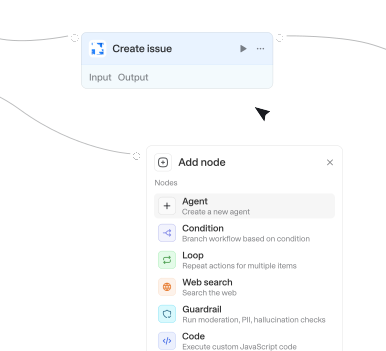
Wähle aus 56 verfügbaren Integrationen und 716 nativen Actions, um deine Agenten und Workflows zu erweitern.



Search workspaces
Searches for Power BI workspaces by name. Returns matching workspaces with ID, name, type, and capacity details.

Send draft from shared mailbox
Sends an existing draft email from a shared mailbox by ID. The draft must already exist in the target mailbox's Drafts folder.
Send email from shared mailbox or other user
Use when sending email from a shared mailbox (e.g., support@company.com) or on behalf of another user with delegated access. Requires 'Send As' or 'Send on Behalf' permission for user mailboxes, or membership in the shared mailbox.


Send reply
Sends a reply to an existing email immediately — use when the user wants to reply now, send a reply, or respond to an email. Use the toggle to choose Reply (sender only) or Reply all (sender and all recipients); use 'draft_reply_to_message' to create a draft for review instead of sending immediately.


Set element alt text
Set the accessibility alt text (title and/or description) on a single existing page element - an image, shape, table, line, group, chart, or video - so screen readers and accessibility/compliance checks (WCAG, Section 508) can describe it. Use this after creating or locating an element to make a deck accessible. Identify the element by its exact objectId: every create-element action returns the id it used (e.g. 'Add image' imageId, 'Add shape with text' shapeId, 'Add table' tableId), or look it up with 'Get presentation' (outputFormat 'map' or 'json'); never invent or guess an id. Provide a title and/or a description - passing an empty string ("") clears that field while omitting it leaves it unchanged; at least one is required. Alt text applies only to page ELEMENTS, never to slides/pages. Echoes back the objectId so you can chain further edits on the same element.
Set image outline and link
Sets the border (outline) and/or clickable link of an existing image on a slide, in place, without replacing the picture — use it to frame an image, recolor/restyle its border, or make it link to a URL. Outline controls: color (RGB 0-1), weight (thickness in points), dash style, and transparency; link controls: point the image at an http(s) URL or pass an empty string to remove the link. Only the properties you set are changed (the API field mask is built to match), so unset fields are left untouched. Identify the image by the exact object ID of an image element that already exists — get it from the response of the action that created it (e.g. 'Add image' returns the imageId) or from 'Get presentation'; never invent or guess the ID. Note: the Slides API does NOT allow setting image effects (brightness, contrast, transparency of the picture itself, recolor filters like grayscale/sepia, or cropping) — those are read-only. To swap the picture, use 'Replace image'; to move or resize it, use 'Update element transform'.

Set parent for task
Converts a task to a subtask or changes its parent task. Requires the task GID and parent task GID, both from search_tasks or typeahead_search. Returns the updated task
Set slide background
Set a single slide's background to a solid color, a stretched image, or inherit it from the slide's layout/master. Use when restyling one slide's backdrop (not a shape's fill — use 'Update shape properties' for that; use 'Add image' to place a movable picture). Choose backgroundType: SOLID_COLOR fills the slide with one RGB color (0-1 per channel) plus optional transparency; IMAGE stretches a public http(s) image to cover the slide; INHERIT_FROM_PARENT removes this slide's own background so it falls back to its layout/master. ID flow: pass the target slide's page object ID in slideId (NOT the slide number). Only the background changes; the field mask is built automatically and the update is atomic (on failure the slide is left unchanged). Returns the same slide object ID under both slideId and objectId so follow-up actions can chain off it.
Set task dependencies
Sets tasks that this task depends on (prerequisites that must be completed first). Requires the task GID and dependency task GIDs from search_tasks or typeahead_search. Returns the dependency list
Set task dependents
Sets tasks that are blocked by this task (tasks waiting on this one to complete). Requires the task GID and dependent task GIDs from search_tasks or typeahead_search. Returns the dependent list



Translate document
Translates a document from one language to another using DeepL's translation service.
Typeahead search
Quick name-based search across Asana objects. Best for finding a resource by name when you know the type. Requires a workspace GID from list_workspaces and a resource type (task, project, user, tag, team, portfolio, goal, or custom_field). Returns matching GIDs and names
Ungroup objects
Ungroup one or more grouped page elements ('elementGroup') back into their individual child elements; pass an array to ungroup many in one atomic batchUpdate. After ungrouping, each child (shape, text box, image, line, etc.) becomes an independent page element and keeps its existing child objectId, so you can then move, resize, restyle, or delete the pieces separately — for example to reposition just one element of a logo lockup. ID flow: the group objectIds you pass must be real existing group IDs — get them from get_presentation (outputFormat 'map' or 'json'), where groups appear as 'elementGroup' elements listing their child objectIds, or from the id returned by the group action that created them. Do NOT invent IDs. The group IDs cease to exist after the call; to address the now-independent children, re-read them via get_presentation (outputFormat 'map').


Update account metadata
Update account metadata (key-value pairs). Note: This updates metadata only, not subscription settings. Requires admin privileges.

Update agent
Updates an existing agent's configuration. Only provided fields are changed; omitted fields stay unchanged. Updates the draft only; a separate publish step (not exposed by this integration) is required to make the changes active. Requires ASSISTANT_API scope.


Update blog post
Updates an existing Confluence blog post's title, body, or status. Blog posts are a separate content type from pages, so this action handles them, not the update page action.

Update board
Updates a single attribute on a board. Requires a board ID, the attribute to change (name, description, or communication), and the new value. Returns the board ID and confirmation of the update.
Update column
Updates a column's title and/or description on a board (changes the column's schema, not item cell values; for cell updates, use Update item). Requires a board ID, column ID, and at least one of title or description. Returns the column's updated title, type, and description.

Update comment
Updates a comment. Call the search_for_issues action to get the issue ID or key if the user just provides the issue name.
Update comment
Edit the text of an existing comment. Note: Wrike only allows editing within 5 minutes of creation. Use get_task_comments first to obtain the commentId.
Update comment
Updates an existing comment on a Confluence page. Supports @mentions (resolved to real people if found, otherwise kept as plain text).


Update contract
Updates fields on an existing Salesforce Contract. To activate a contract, set Status to an Activated-category value (requires the 'Activate Contracts' user permission). Activated contracts cannot have AccountId changed and most fields become read-only without that permission.

Update custom object
Updates properties of an existing custom object record. Use 'Get custom object context' to discover available property names.

Update database
Updates a Notion database's title, description, icon, cover, or property schema. Requires a database ID and at least one field to update. Returns the updated database metadata.

Update draft
Updates an existing draft email by ID. Modify its subject, body, recipients, or attachments.

Update draft
Updates an existing draft email in place. Provide the message ID of the draft and the fields to change — unspecified fields keep their current values.
Update draft in shared mailbox
Updates an existing draft email in a shared mailbox by ID. Modify its subject, body, recipients, or attachments. The draft must already exist in the target mailbox's Drafts folder.
Update element transform
Move, resize, rotate, or shear an existing page element (shape, image, text box, line, group, etc.) on a slide by updating its transform matrix. Use it to reposition or scale elements after creating them or after reading the current layout. Requires the object ID of an element that already exists — get it from the action that created the element (every create action returns the id it used) or from get_presentation (outputFormat "map" or "json"). Never invent or guess the element ID.
Update element z-order
Reorder one or more page elements front-to-back (z-order / stacking order) on a single slide, choosing an operation: BRING_TO_FRONT, BRING_FORWARD, SEND_BACKWARD, or SEND_TO_BACK. Use it to fix overlap - e.g. put a label on top of an image, push a background shape behind text, or bring a highlighted box to the front. All listed elements move together in one atomic batch. This action consumes existing element object IDs: pass the exact objectId of each element (from the create action that returned it, or from get_presentation with outputFormat "map" or "json") - never invent IDs or pass a slide number. Every element must be on the SAME slide and must not be grouped; whole slides and layout-inherited placeholders cannot be reordered. If any ID is wrong the whole batch is rejected and nothing moves.

Update event
Updates an existing calendar event. Supports partial time updates — if only the start time or end time is provided, the other is automatically preserved from the current event. The timezone is required when updating any time field. Use this to directly change event details when the user is the organizer or has edit rights. If the user is an attendee wanting to suggest a different time, use 'Propose new time' instead. Supports shared/delegated calendars: pass a colleague's email in 'Shared calendar owner' to act on their calendar (they must have granted you edit rights); leave it empty for your own calendar.

Update group
Updates a single attribute on a group. Requires a board ID, group ID, the attribute to change (title, color, or position), and the new value. Returns the group's updated ID, title, color, and position.
Update issue
Updates fields on an existing Jira issue such as summary, description, assignee, priority, labels, due date, components, fix versions, or custom fields.
Update item
Updates multiple values of an item. Requires a board ID, item ID, and a columnValues map. Returns the updated item's ID, name, and current column values.
Update item column values
Updates a single column value on an item row in a board. Requires a board ID, item ID, column ID, and the new column value. Returns the updated item's ID.

Update KB article
Update an existing knowledge base article. IMPORTANT: The contentHtml field is mapped to body_html in the API.
Update knowledge file
Replaces an existing file in a knowledge folder with a new version. The old file is removed and the new file is processed and embedded. Requires KNOWLEDGE_FOLDER_API scope.
Update label
Add/remove labels on a message or a thread. First call 'Get email with attachments' to resolve messageId and/or threadId.
Update line properties
Restyle an EXISTING line, arrow, or connector by changing only the properties you set: color, thickness, dash pattern, arrowheads, or transparency (everything else is left untouched). Use it to edit a line you already added with 'Add line' or any line found in the deck. It does NOT create lines ('Add line') and does NOT move or re-route endpoints ('Update element transform'). ID flow: pass the presentationId from the deck URL plus the line's existing objectId — use the id returned by 'Add line', or look it up via 'Get presentation' (outputFormat "map" or "json"). Never invent or mistype an object ID. The action echoes the line's objectId (as both objectId and lineId) so you can chain further edits.
Update marketing email
Updates a HubSpot Marketing Email's name, subject, or content. Requires a marketing email ID and at least one of: name, subject, or content — call 'Get marketing email' first to inspect the current content widget structure before passing updated content. Returns the updated email's ID, name, subject, state, and updated timestamp.
Update meeting
Updates an existing meeting activity in HubSpot. Requires the meeting ID and at least one field to change. Only provided fields are updated — omitted fields are left unchanged. Returns the updated meeting with all its current values.
Update page
Updates a Notion page's properties, icon, cover, or trash status. Also appends content to an existing page: omit blockId and provide blockText with blockType 'markdown' to append a full markdown document of any length, or use a specific blockType (paragraph, heading_1, etc.) for a single block. Provide blockId to update an existing block in place instead. Use this action whenever you need to add content to an existing page.
Update page
Update an existing Confluence page by ID. Set titleChangeOnly=true to rename only (no version number needed). Set titleChangeOnly=false to update content.

Update page title
Update only the title of an existing SharePoint page, leaving the page body unchanged. Use this when the user wants to rename a page or change its title.
Update paragraph style
Formats existing paragraphs in a shape or text box (alignment, line spacing, indentation, space above/below, bullets/numbered lists, and text direction); use it to style copy after the text already exists. Requires two existing IDs: the presentationId from the deck URL and the elementId of the shape/text box. Get elementId from the id returned when the element was created (add_shape_with_text, build_deck_from_outline, etc.) or from get_presentation (outputFormat "map" or "json"); never invent or guess it.


Changes in path
Triggers when files are added or modified in a specific path. Useful for CI/CD pipelines, config monitoring, code review automation, or content tracking.
File updated
Triggers when a file is updated in a SharePoint folder. Re-fires each time a file's contents change, and optionally filter by name or file extension.
Label changed on email
Triggers when categories are added to or removed from an email in your Outlook mailbox.
New email in shared inbox
Triggers when new emails are received in specified shared inboxes (users you have Mail.Read.Shared access to).
New email in shared mailbox folder
Triggers when emails appear in a specific folder of a shared mailbox (either newly received or moved to it). Requires Mail.Read.Shared permission and folder access.
New email in specific folder
Triggers when emails appear in a specific folder (either newly received or moved to it).
New email matching search
Triggers when new emails matching your search query are received (sent emails excluded unless you add 'in:sent').

New event matching search
Triggers when new calendar events matching the specified search query are created.
New event matching search
Triggers when new calendar events matching the specified search query are created.
New issue
Triggers when a new issue is created in the repository. Does not trigger for pull requests.
New item created
Triggers when a new file or folder is created in a SharePoint folder. Watch files, folders, or both, and optionally filter by name or file extension.

New meeting transcript
Triggers when a transcript becomes available for a recently ended Teams meeting.

New message by search
Triggers when a new message is found by searching for a specific keyword or other criteria.
New message in channel
Triggers when a new message was posted in a channel (public, private, DM, etc.).
New message in conversations
Triggers when a new message is posted in a specific conversation (DM, group DM, or channel).


Property changed
Triggers when a property on a HubSpot object (a standard object like a contact, company, deal, or ticket, or a custom object) changes. Watching a specific property fires once per value transition and returns the new value under a key named new_ followed by the property name (e.g. new_dealstage when watching dealstage). Leave the property name empty to fire on any update to the object instead.
Actions
Triggers
Actions
Triggers
Actions
Triggers
Actions
Triggers
Actions
Triggers
Actions
Triggers
Actions
Triggers
Actions
Triggers
Actions
Triggers
Actions
Triggers
Actions
Triggers
Actions
Triggers
Actions
Triggers
Actions
Triggers
Actions
Triggers
Actions
Triggers
Actions
Triggers
Actions
Triggers
Actions
Triggers
Actions
Triggers
Actions
Triggers
Actions
Triggers
Actions
Triggers
Actions
Triggers
Actions
Triggers
Actions
Triggers
Actions
Triggers
Actions
Triggers
Actions
Triggers
Actions
Triggers
Actions
Triggers
Actions
Triggers
Actions
Triggers
Actions
Triggers
Actions
Triggers
Actions
Triggers
Actions
Triggers
Actions
Triggers
Actions
Triggers
Actions
Triggers
Actions
Triggers
Actions
Triggers
Actions
Triggers
Actions
Triggers
Actions
Triggers
Actions
Triggers
Actions
Triggers
Actions
Triggers
Actions
Triggers
Actions
Triggers
Actions
Triggers
Actions
Triggers
Actions
Triggers
Actions
Triggers
Actions
Triggers
Actions
Triggers
Actions
Triggers
Actions
Triggers
Actions
Triggers
Actions
Triggers
Actions
Triggers
Actions
Triggers
Actions
Triggers
Actions
Triggers
Actions
Triggers
Fragen & Antworten
Was kann ich mit Langdock‑Integrationen machen?
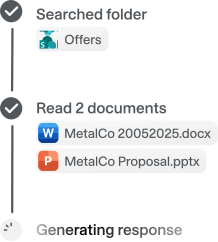
Integrationen verbinden Langdock mit deinen bestehenden Tools, sodass Agents und Workflows interne Dokumente durchsuchen, Aktionen auslösen, Daten aktualisieren oder Abläufe in deinen Apps automatisieren können.
Welche Tools kann ich mit Langdock integrieren?
Langdock unterstützt eine große Bandbreite gängier Business‑Tools wie Google Drive, Notion, Confluence, Slack, Salesforce, Jira, Asana und viele mehr. Du kannst zudem individuelle Integrationen für jedes Tool erstellen, das eine API anbietet.
Muss ich eigene Integrationen entwickeln?
Das ist nicht notwendig. Die meisten Verbindungen funktionieren sofort nach der Aktivierung. Wenn du jedoch erweiterte Funktionen oder Actions benötigst, bietet Langdock einen integrierten Builder an. Damit erstellst du deine eigene Logik – inklusive unterstütztem JavaScript-Flow.
Sind Integrationen sicher?
Absolut. Langdock nutzt eine sichere Authentifizierung (inklusive OAuth 2.0), verwahrt Zugangsdaten geschützt und führt eigenes Code‑Handling in einer isolierten Sandbox‑Umgebung aus. Zusätzlich ist Langdock ISO 27001‑zertifiziert, SOC 2 Type II-geprüft und vollständig DSGVO‑konform.
Wie nutze ich Integrationen in einem Chat oder Agenten?
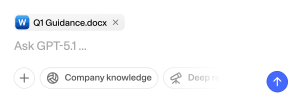
Sobald eine Integration verbunden ist, kannst du sie in jedem Chat direkt nutzen, indem du @ eingibst und verfügbare Actions auswählst. Außerdem können Agenten dank ihrer Anweisungen Integrationen automatisch ausführen.