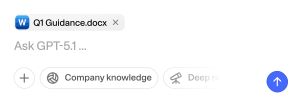
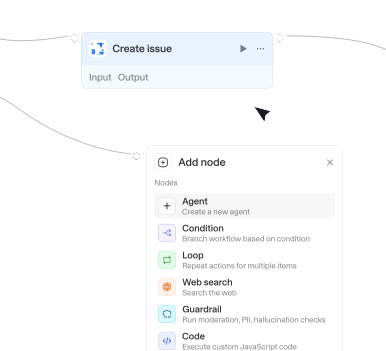
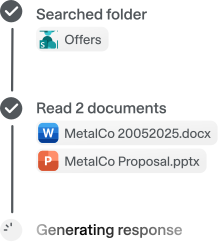
Wähle aus 56 verfügbaren Integrationen und 716 nativen Actions, um deine Agenten und Workflows zu erweitern.





Search users
Search for users in your organization by display name or email. Useful for finding specific people when multiple users have similar names.

Search users
Finds Pipedrive users (colleagues) by name or email, returning each user's ID, name, email, and active status. Use it to look up a colleague's user ID for owner fields on other actions. Leave the term empty to list all users.

Search vector index
Searches the database for the most relevant information based on the query provided.

Search work items
Searches work items in the connected organization using filters such as project, type, state, assignee, sprint, or text.

Search workspaces
Searches for Power BI workspaces by name. Returns matching workspaces with ID, name, type, and capacity details.
Send channel message
Sends a message in a Teams channel on the user's behalf. Supports optional Adaptive Cards and Teams announcements.
Send chat message
Sends a message in a Teams chat on the user's behalf. To message the user themselves (a note to self), use chat ID 48:notes instead of searching for their name.

Send draft from shared mailbox
Sends an existing draft email from a shared mailbox by ID. The draft must already exist in the target mailbox's Drafts folder.
Send email from shared mailbox or other user
Use when sending email from a shared mailbox (e.g., support@company.com) or on behalf of another user with delegated access. Requires 'Send As' or 'Send on Behalf' permission for user mailboxes, or membership in the shared mailbox.


Send reply
Sends a reply to an existing email immediately — use when the user wants to reply now, send a reply, or respond to an email. Use the toggle to choose Reply (sender only) or Reply all (sender and all recipients); use 'draft_reply_to_message' to create a draft for review instead of sending immediately.
Send reply from shared mailbox
Sends a reply to an email in a shared mailbox immediately — use when the user wants to reply now from a shared mailbox (e.g., support@company.com). Use the toggle to choose Reply (sender only) or Reply all (sender and all recipients); use 'draft_reply_to_message_in_shared_mailbox' to create a draft for review instead of sending immediately.


Set element alt text
Set the accessibility alt text (title and/or description) on a single existing page element - an image, shape, table, line, group, chart, or video - so screen readers and accessibility/compliance checks (WCAG, Section 508) can describe it. Use this after creating or locating an element to make a deck accessible. Identify the element by its exact objectId: every create-element action returns the id it used (e.g. 'Add image' imageId, 'Add shape with text' shapeId, 'Add table' tableId), or look it up with 'Get presentation' (outputFormat 'map' or 'json'); never invent or guess an id. Provide a title and/or a description - passing an empty string ("") clears that field while omitting it leaves it unchanged; at least one is required. Alt text applies only to page ELEMENTS, never to slides/pages. Echoes back the objectId so you can chain further edits on the same element.
Set image outline and link
Sets the border (outline) and/or clickable link of an existing image on a slide, in place, without replacing the picture — use it to frame an image, recolor/restyle its border, or make it link to a URL. Outline controls: color (RGB 0-1), weight (thickness in points), dash style, and transparency; link controls: point the image at an http(s) URL or pass an empty string to remove the link. Only the properties you set are changed (the API field mask is built to match), so unset fields are left untouched. Identify the image by the exact object ID of an image element that already exists — get it from the response of the action that created it (e.g. 'Add image' returns the imageId) or from 'Get presentation'; never invent or guess the ID. Note: the Slides API does NOT allow setting image effects (brightness, contrast, transparency of the picture itself, recolor filters like grayscale/sepia, or cropping) — those are read-only. To swap the picture, use 'Replace image'; to move or resize it, use 'Update element transform'.

Set parent for task
Converts a task to a subtask or changes its parent task. Requires the task GID and parent task GID, both from search_tasks or typeahead_search. Returns the updated task
Set slide background
Set a single slide's background to a solid color, a stretched image, or inherit it from the slide's layout/master. Use when restyling one slide's backdrop (not a shape's fill — use 'Update shape properties' for that; use 'Add image' to place a movable picture). Choose backgroundType: SOLID_COLOR fills the slide with one RGB color (0-1 per channel) plus optional transparency; IMAGE stretches a public http(s) image to cover the slide; INHERIT_FROM_PARENT removes this slide's own background so it falls back to its layout/master. ID flow: pass the target slide's page object ID in slideId (NOT the slide number). Only the background changes; the field mask is built automatically and the update is atomic (on failure the slide is left unchanged). Returns the same slide object ID under both slideId and objectId so follow-up actions can chain off it.
Set task dependencies
Sets tasks that this task depends on (prerequisites that must be completed first). Requires the task GID and dependency task GIDs from search_tasks or typeahead_search. Returns the dependency list
Set task dependents
Sets tasks that are blocked by this task (tasks waiting on this one to complete). Requires the task GID and dependent task GIDs from search_tasks or typeahead_search. Returns the dependent list

Similarity search
Searches the collection for the entities most similar to the query, ranked by vector similarity. Use this to find the most relevant information for a query.



Translate document
Translates a document from one language to another using DeepL's translation service.
Typeahead search
Quick name-based search across Asana objects. Best for finding a resource by name when you know the type. Requires a workspace GID from list_workspaces and a resource type (task, project, user, tag, team, portfolio, goal, or custom_field). Returns matching GIDs and names
Ungroup objects
Ungroup one or more grouped page elements ('elementGroup') back into their individual child elements; pass an array to ungroup many in one atomic batchUpdate. After ungrouping, each child (shape, text box, image, line, etc.) becomes an independent page element and keeps its existing child objectId, so you can then move, resize, restyle, or delete the pieces separately — for example to reposition just one element of a logo lockup. ID flow: the group objectIds you pass must be real existing group IDs — get them from get_presentation (outputFormat 'map' or 'json'), where groups appear as 'elementGroup' elements listing their child objectIds, or from the id returned by the group action that created them. Do NOT invent IDs. The group IDs cease to exist after the call; to address the now-independent children, re-read them via get_presentation (outputFormat 'map').


Update account metadata
Update account metadata (key-value pairs). Note: This updates metadata only, not subscription settings. Requires admin privileges.
Update activity
Updates an existing activity, including marking it done, rescheduling it, or changing its links.

Update agent
Updates an existing agent's configuration. Only provided fields are changed; omitted fields stay unchanged. Updates the draft only; a separate publish step (not exposed by this integration) is required to make the changes active. Requires ASSISTANT_API scope.

Update asset
Updates selected asset attributes while preserving the current object's other attributes

Update blog post
Updates an existing Confluence blog post's title, body, or status. Blog posts are a separate content type from pages, so this action handles them, not the update page action.

Update board
Updates a single attribute on a board. Requires a board ID, the attribute to change (name, description, or communication), and the new value. Returns the board ID and confirmation of the update.
Update column
Updates a column's title and/or description on a board (changes the column's schema, not item cell values; for cell updates, use Update item). Requires a board ID, column ID, and at least one of title or description. Returns the column's updated title, type, and description.
Update comment
Updates a comment. Call the search_for_issues action to get the issue ID or key if the user just provides the issue name.
Update comment
Edit the text of an existing comment. Note: Wrike only allows editing within 5 minutes of creation. Use get_task_comments first to obtain the commentId.
Update comment
Updates an existing comment on a Confluence page. Supports @mentions (resolved to real people if found, otherwise kept as plain text).

Update comment
Updates a comment. Call the search_for_issues action to get the issue ID or key if the user just provides the issue name.

Update contact
Updates selected fields on an existing personal Outlook contact. Unspecified fields remain unchanged. Empty optional values are ignored and cannot clear a field. For a department-only change, set department and leave givenName, surname, displayName, and every other optional field unset. Clearing fields is not supported.

Update contract
Updates fields on an existing Salesforce Contract. To activate a contract, set Status to an Activated-category value (requires the 'Activate Contracts' user permission). Activated contracts cannot have AccountId changed and most fields become read-only without that permission.

Update custom object
Updates properties of an existing custom object record. Use 'Get custom object context' to discover available property names.

Update database
Updates a Notion database's title, description, icon, cover, or property schema. Requires a database ID and at least one field to update. Returns the updated database metadata.
Update deal
Updates an existing deal, changing any of its value, stage, status, owner, or custom fields.
Update deal product
Updates a product line item on a deal, such as its price, quantity, discount, or comment.

Update draft
Updates an existing draft email by ID. Modify its subject, body, recipients, or attachments.

Update draft
Updates an existing draft email in place. Provide the message ID of the draft and the fields to change — unspecified fields keep their current values.
Update draft in shared mailbox
Updates an existing draft email in a shared mailbox by ID. Modify its subject, body, recipients, or attachments. The draft must already exist in the target mailbox's Drafts folder.
Update element transform
Move, resize, rotate, or shear an existing page element (shape, image, text box, line, group, etc.) on a slide by updating its transform matrix. Use it to reposition or scale elements after creating them or after reading the current layout. Requires the object ID of an element that already exists — get it from the action that created the element (every create action returns the id it used) or from get_presentation (outputFormat "map" or "json"). Never invent or guess the element ID.
Update element z-order
Reorder one or more page elements front-to-back (z-order / stacking order) on a single slide, choosing an operation: BRING_TO_FRONT, BRING_FORWARD, SEND_BACKWARD, or SEND_TO_BACK. Use it to fix overlap - e.g. put a label on top of an image, push a background shape behind text, or bring a highlighted box to the front. All listed elements move together in one atomic batch. This action consumes existing element object IDs: pass the exact objectId of each element (from the create action that returned it, or from get_presentation with outputFormat "map" or "json") - never invent IDs or pass a slide number. Every element must be on the SAME slide and must not be grouped; whole slides and layout-inherited placeholders cannot be reordered. If any ID is wrong the whole batch is rejected and nothing moves.

Update event
Updates an existing calendar event. Room changes submit asynchronous booking requests; use 'Check room booking status' later to verify whether Exchange accepted or declined them. 'Location' only controls the event's displayed location and does not book a room. Supports partial time updates: if only the start time or end time is provided, the other is automatically preserved from the current event. The timezone is required when updating any time field. Use this to directly change event details when the user is the organizer or has edit rights. If the user is an attendee wanting to suggest a different time, use 'Propose new time' instead. Supports shared/delegated calendars: pass a colleague's email in 'Shared calendar owner' to act on their calendar (they must have granted you edit rights); leave it empty for your own calendar.


Assignee assigned
Triggers when an issue is assigned to someone, and again when it is reassigned to a different person. Optionally scope to a single team.


Call ended
Triggers when a Google Meet call ends, so you can fetch the transcript, send follow-ups, or log the call.
Changed activity
Triggers when an activity is created or updated. You can additionally filter any event to records where a specific field matches given value(s).
Changed deal
Triggers when a deal is created or updated. You can additionally filter any event to records where a specific field matches given value(s) (e.g. Updated with status = won to react to deals becoming won).
Changed lead
Triggers when a lead is created or updated. You can additionally filter any event to records where a specific field matches given value(s).
Changed note
Triggers when a note is created or updated. You can additionally filter any event to records where a specific field matches given value(s).
Changed organization
Triggers when an organization is created or updated. You can additionally filter any event to records where a specific field matches given value(s).
Changed person
Triggers when a person is created or updated. You can additionally filter any event to records where a specific field matches given value(s).

Changes in path
Triggers when files are added or modified in a specific path. Useful for CI/CD pipelines, config monitoring, code review automation, or content tracking.

Changes in path
Triggers when files under a specific path change in a project. Useful for docs or config sync workflows.

File added to folder
Starts when a file or meeting is uploaded or moved into the selected Library folder. Existing contents and edits do not trigger. Connect a personal or workspace API key with Workflow API scope. Personal keys use their owner's folder access. Workspace keys can access folders shared with the key or everyone in the workspace. Use Read folder file for the file, or Get meeting with meetingId for owner, attendees, notes, and transcript.

File updated
Triggers when a file is updated in a SharePoint folder. Re-fires each time a file's contents change, and optionally filter by name or file extension.
Issue state changed
Triggers when an issue moves to a different workflow state (e.g. Todo to In Progress, or In Progress to Done). Does not fire on issue creation. Optionally scope to a single team or workflow state.

Job ended
Triggers when a UiPath Orchestrator job reaches a terminal state (Successful, Faulted, or Stopped). Use to react to finished automations, for example to notify on failures or to process a job's output once it completes.
Label changed on email
Triggers when categories are added to or removed from an email in your Outlook mailbox.
Label changed on email in shared inbox
Triggers when categories are added to or removed from an email in a shared inbox (an owner you have Mail.Read.Shared access to).
New automation idea
Triggers when a new automation idea is created or submitted in Automation Hub. Event data includes newPhase / newStatus (initial pipeline values). Optionally filter by phase, status, category, or application.
New email in shared inbox
Triggers when new emails are received in specified shared inboxes (users you have Mail.Read.Shared access to).
New email in shared mailbox folder
Triggers when emails appear in a specific folder of a shared mailbox (either newly received or moved to it). Requires Mail.Read.Shared permission and folder access.
New email in specific folder
Triggers when emails appear in a specific folder (either newly received or moved to it).
New email matching search
Triggers when new emails matching your search query are received (sent emails excluded unless you add 'in:sent').

New event matching search
Triggers when new calendar events matching the specified search query are created.
New event matching search
Triggers when new calendar events matching the specified search query are created.
New issue
Triggers when a new issue is created in the repository. Does not trigger for pull requests.
New item created
Triggers when a new file or folder is created in a SharePoint folder. Watch files, folders, or both, and optionally filter by name or file extension.
New meeting transcript
Triggers when a transcript becomes available for a recently ended Teams meeting.

New message by search
Triggers when a new message is found by searching for a specific keyword or other criteria.
New message in channel
Triggers when a new message was posted in a channel (public, private, DM, etc.).
New message in conversations
Triggers when a new message is posted in a specific conversation (DM, group DM, or channel).

New message with tag
Triggers when a specific user is @-mentioned in a Viva Engage community, in either a thread starter or a reply.

New reaction in channel
Triggers when someone reacts to a channel message or a reply in its thread. Optionally filter to one reaction type (Unicode emoji like 👍, or a display name like Like). Requires ChannelMessage.Read.All on the connection (granted when a channel-message action such as Get channel messages is enabled).
New reaction in chat
Triggers when someone reacts to a message in a Teams chat (1:1 or group). Optionally filter to one reaction type (Unicode emoji like 👍, or a display name like Like). Requires Chat.ReadWrite on the connection (granted when a chat-message action such as Get chat messages is enabled).

Property changed
Triggers when a property on a HubSpot object (a standard object like a contact, company, deal, or ticket, or a custom object) changes. Watching a specific property fires once per value transition and returns the new value under a key named new_ followed by the property name (e.g. new_dealstage when watching dealstage). Leave the property name empty to fire on any update to the object instead.
Updated automation idea
Triggers when an automation idea is updated (phase/status moves or other edits). Does not fire on create. Event data includes newPhase / newStatus (current values after the update); oldPhase / oldStatus are null because the Open API does not expose prior values. To watch ideas going Live, set Phase ID to your tenant's Live phase ID from a Search automation ideas card.
Updated issue
Triggers when an existing Jira issue is modified (e.g., status change, field edit, reassignment). Does not fire for newly created issues — use "New issue" for that.
Actions
Triggers
Actions
Triggers
Actions
Triggers
Actions
Triggers
Actions
Triggers
Actions
Triggers
Actions
Triggers
Actions
Triggers
Actions
Triggers
Actions
Triggers
Actions
Triggers
Actions
Triggers
Actions
Triggers
Actions
Triggers
Actions
Triggers
Actions
Triggers
Actions
Triggers
Actions
Triggers
Actions
Triggers
Actions
Triggers
Actions
Triggers
Actions
Triggers
Actions
Triggers
Actions
Triggers
Actions
Triggers
Actions
Triggers
Actions
Triggers
Actions
Triggers
Actions
Triggers
Actions
Triggers
Actions
Triggers
Actions
Triggers
Actions
Triggers
Actions
Triggers
Actions
Triggers
Actions
Triggers
Actions
Triggers
Actions
Triggers
Actions
Triggers
Actions
Triggers
Actions
Triggers
Actions
Triggers
Actions
Triggers
Actions
Triggers
Actions
Triggers
Actions
Triggers
Actions
Triggers
Actions
Triggers
Actions
Triggers
Actions
Triggers
Actions
Triggers
Actions
Triggers
Actions
Triggers
Actions
Triggers
Actions
Triggers
Actions
Triggers
Actions
Triggers
Actions
Triggers
Actions
Triggers
Actions
Triggers
Actions
Triggers
Actions
Triggers
Actions
Triggers
Actions
Triggers
Actions
Triggers
Actions
Triggers
Actions
Triggers
Actions
Triggers
Actions
Triggers
Actions
Triggers
Actions
Triggers
Actions
Triggers
Actions
Triggers
Actions
Triggers
Actions
Triggers
Actions
Triggers
Fragen & Antworten
Was kann ich mit Langdock‑Integrationen machen?
Integrationen verbinden Langdock mit deinen bestehenden Tools, sodass Agents und Workflows interne Dokumente durchsuchen, Aktionen auslösen, Daten aktualisieren oder Abläufe in deinen Apps automatisieren können.
Welche Tools kann ich mit Langdock integrieren?
Langdock unterstützt eine große Bandbreite gängier Business‑Tools wie Google Drive, Notion, Confluence, Slack, Salesforce, Jira, Asana und viele mehr. Du kannst zudem individuelle Integrationen für jedes Tool erstellen, das eine API anbietet.
Muss ich eigene Integrationen entwickeln?
Das ist nicht notwendig. Die meisten Verbindungen funktionieren sofort nach der Aktivierung. Wenn du jedoch erweiterte Funktionen oder Actions benötigst, bietet Langdock einen integrierten Builder an. Damit erstellst du deine eigene Logik – inklusive unterstütztem JavaScript-Flow.
Sind Integrationen sicher?
Absolut. Langdock nutzt eine sichere Authentifizierung (inklusive OAuth 2.0), verwahrt Zugangsdaten geschützt und führt eigenes Code‑Handling in einer isolierten Sandbox‑Umgebung aus. Zusätzlich ist Langdock ISO 27001‑zertifiziert, SOC 2 Type II-geprüft und vollständig DSGVO‑konform.
Wie nutze ich Integrationen in einem Chat oder Agenten?
Sobald eine Integration verbunden ist, kannst du sie in jedem Chat direkt nutzen, indem du @ eingibst und verfügbare Actions auswählst. Außerdem können Agenten dank ihrer Anweisungen Integrationen automatisch ausführen.