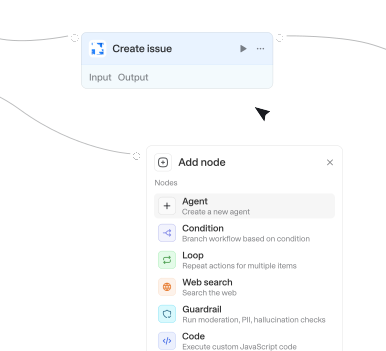
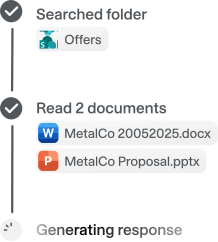
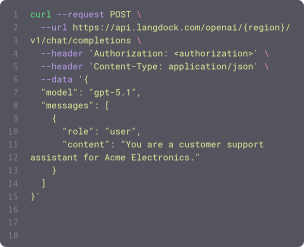
Wähle aus 56 verfügbaren Integrationen und 716 nativen Actions, um deine Agenten und Workflows zu erweitern.




List interview schedules
List all scheduled interviews for candidates in the organization. Use when asked 'list interview schedules', 'show scheduled interviews', or 'what interviews are scheduled'.




List knowledge files
Lists all files in a knowledge folder including their processing status. Requires KNOWLEDGE_FOLDER_API scope.

List labels
Lists all labels in the user's mailbox. Agents can call this to find the correct label ID when a user mentions a label name that can't be resolved.

List layouts
Inspect a presentation's theme and layout catalog before creating or editing slides. For every layout it returns the predefinedLayout name (the exact value create_slide expects in its layout/predefinedLayout field — e.g. TITLE_AND_BODY), a human display name, and the placeholder types and indices that layout offers (e.g. TITLE[0], BODY[0]) so you never target a placeholder that doesn't exist. Also returns the master's theme color scheme as hex, the slide dimensions (pageSize) in points, and — when the master's placeholder shapes carry styling — the default fonts/styles per placeholder type (defaultTextStyles may be empty for decks whose master placeholders are blank prompt shapes). This action reads only; it consumes a presentationId and produces no object IDs you must thread into later calls — its purpose is to tell you which predefinedLayout names and placeholder slots are valid inputs for create_slide. Use it first whenever you need to know which layouts exist, what placeholders a layout has, or what colors/fonts the theme uses.



List marketing emails
Lists HubSpot Marketing Emails — use this to discover available email templates and campaign drafts, or to find a specific one by name when you don't have the ID. Accepts an optional limit (1–500, default 50). Returns a list of emails with their IDs, names, subjects, publish state, campaign names, and timestamps.

List models
Lists all available models for use with the Agent API, including their regions and capabilities. Requires ASSISTANT_API scope.

List notebooks
Lists OneNote notebooks sorted by most recently modified, with optional filtering by name, shared inclusion, and role.

List online meetings
Lists all online meetings the user has organized. Returns join URLs that can be used to retrieve transcripts.


List presentations
Find Google Slides presentations the user can access, returning each one's presentationId, name, last-modified/created time, owners, and links. Use it to discover a deck before reading or editing it. This is the entry point for the ID chain: the returned presentationId (the alphanumeric ID in a deck's URL between '/d/' and '/edit') can be passed directly to get_presentation, create_slide, and other Slides actions — so call this first instead of guessing a presentationId. It does not read slide contents or slide/element object IDs; use get_presentation (outputFormat "map") for those.

List projects
Lists all Google Cloud projects that have BigQuery enabled and are accessible to the authenticated user.

List projects
Lists projects (folders) in the Tableau site, optionally filtered by project name or parent project.

List proposed times
Retrieves attendee proposed times for an event. Supports shared/delegated calendars: pass a colleague's email in 'Shared calendar owner' to act on their calendar (they must have granted you edit rights); leave it empty for your own calendar.



List records
Lists records from a Dataverse table using OData query options. Supports column selection, filtering, and ordering. Results are paginated internally up to the requested limit.

List releases
Lists all releases in a repository. Useful for changelog automation, docs sync, and tracking deployments.


List schemas
Lists all schemas within a specified catalog. Schemas contain tables, views, and other data objects.
List sections
Lists sections across all notebooks or within a specific notebook, sorted by most recently modified.
List serving endpoints
Lists all model serving endpoints in the workspace, including agent endpoints. Shows endpoint name, state, and type.

List tables
Lists all tables within a specified catalog and schema. Returns table names, types, and basic metadata.
List tables
Lists available Dataverse tables (entities) in the environment, returning each table's logical name, entity-set name, and display name.

List tables
Lists all tables in a base. Requires a base ID. Returns table names and IDs. Lighter than Get base schema when you only need table names.

List tabs
Retrieves a list of all tabs in a Google Doc with their IDs, names, and positions. Use this to discover available tabs before retrieving specific tab content.



List user conversations
Lists all conversations (channels, DMs, group DMs) that a specific user is a member of.

List users
Retrieves a list of users from Zendesk, with optional filtering by role, permission set, or external ID.
List volumes
Lists all volumes within a specified catalog and schema. Volumes are used to store unstructured data like files.
List workbooks
Lists workbooks in the Tableau site, optionally filtered by project (folder) name or workbook title.

List workspaces
Lists all workspaces and organizations accessible to the authenticated user. No inputs required. Returns workspace GIDs, names, and whether each is an organization



Move email to folder
Moves an email or draft to a different folder — use to delete an email or draft by moving it to deleted items, archive an email, organize emails into folders, or unarchive. Accepts well-known names (inbox, drafts, sentitems, deleteditems, junkemail, outbox, archive, conversationhistory, scheduled, clutter) or folder IDs from 'list_folders'.

Move file
Moves a file to a different folder in Google Drive. The file is removed from its current folder and placed in the target folder.


Move item to board
Moves an item from its current board to a different board. Monday auto-maps columns with matching IDs between boards. Requires an item ID, target board ID, and target group ID. Returns the moved item's new board and group.
Move item to group
Moves an item to a different group within the same board. Requires an item ID and the destination group ID. Returns the moved item's ID and new group.
Propose new time
Tentatively accepts an event invitation and proposes a different time to the organizer. Use this when you are an attendee and want to suggest rescheduling. Microsoft Graph requires sending a response for proposed times. If the user is the event organizer, use 'Update event' instead to change the time directly. Supports shared/delegated calendars: pass a colleague's email in 'Shared calendar owner' to act on their calendar (they must have granted you edit rights); leave it empty for your own calendar.
Qualify lead
Add-on action (Dynamics 365 Sales) — requires the Sales app on the connected Dataverse environment. Qualifies a lead via the QualifyLead operation, optionally creating a linked account, contact, and opportunity, and returns references to the records created.

Query database
Fetches pages from a Notion database with optional filtering, sorting, and pagination. Requires a database ID; filters, sorts, and pagination parameters are optional. Returns a list of matching pages with their properties.

Changes in path
Triggers when files are added or modified in a specific path. Useful for CI/CD pipelines, config monitoring, code review automation, or content tracking.

File updated
Triggers when a file is updated in a SharePoint folder. Re-fires each time a file's contents change, and optionally filter by name or file extension.
Label changed on email
Triggers when categories are added to or removed from an email in your Outlook mailbox.

New email in shared inbox
Triggers when new emails are received in specified shared inboxes (users you have Mail.Read.Shared access to).
New email in shared mailbox folder
Triggers when emails appear in a specific folder of a shared mailbox (either newly received or moved to it). Requires Mail.Read.Shared permission and folder access.
New email in specific folder
Triggers when emails appear in a specific folder (either newly received or moved to it).
New email matching search
Triggers when new emails matching your search query are received (sent emails excluded unless you add 'in:sent').

New event matching search
Triggers when new calendar events matching the specified search query are created.
New event matching search
Triggers when new calendar events matching the specified search query are created.
New issue
Triggers when a new issue is created in the repository. Does not trigger for pull requests.
New item created
Triggers when a new file or folder is created in a SharePoint folder. Watch files, folders, or both, and optionally filter by name or file extension.
New meeting transcript
Triggers when a transcript becomes available for a recently ended Teams meeting.
New message by search
Triggers when a new message is found by searching for a specific keyword or other criteria.
New message in channel
Triggers when a new message was posted in a channel (public, private, DM, etc.).
New message in conversations
Triggers when a new message is posted in a specific conversation (DM, group DM, or channel).

Property changed
Triggers when a property on a HubSpot object (a standard object like a contact, company, deal, or ticket, or a custom object) changes. Watching a specific property fires once per value transition and returns the new value under a key named new_ followed by the property name (e.g. new_dealstage when watching dealstage). Leave the property name empty to fire on any update to the object instead.
Actions
Triggers
Actions
Triggers
Actions
Triggers
Actions
Triggers
Actions
Triggers
Actions
Triggers
Actions
Triggers
Actions
Triggers
Actions
Triggers
Actions
Triggers
Actions
Triggers
Actions
Triggers
Actions
Triggers
Actions
Triggers
Actions
Triggers
Actions
Triggers
Actions
Triggers
Actions
Triggers
Actions
Triggers
Actions
Triggers
Actions
Triggers
Actions
Triggers
Actions
Triggers
Actions
Triggers
Actions
Triggers
Actions
Triggers
Actions
Triggers
Actions
Triggers
Actions
Triggers
Actions
Triggers
Actions
Triggers
Actions
Triggers
Actions
Triggers
Actions
Triggers
Actions
Triggers
Actions
Triggers
Actions
Triggers
Actions
Triggers
Actions
Triggers
Actions
Triggers
Actions
Triggers
Actions
Triggers
Actions
Triggers
Actions
Triggers
Actions
Triggers
Actions
Triggers
Actions
Triggers
Actions
Triggers
Actions
Triggers
Actions
Triggers
Actions
Triggers
Actions
Triggers
Actions
Triggers
Actions
Triggers
Actions
Triggers
Actions
Triggers
Actions
Triggers
Actions
Triggers
Actions
Triggers
Actions
Triggers
Actions
Triggers
Actions
Triggers
Actions
Triggers
Actions
Triggers
Actions
Triggers
Fragen & Antworten
Was kann ich mit Langdock‑Integrationen machen?
Integrationen verbinden Langdock mit deinen bestehenden Tools, sodass Agents und Workflows interne Dokumente durchsuchen, Aktionen auslösen, Daten aktualisieren oder Abläufe in deinen Apps automatisieren können.
Welche Tools kann ich mit Langdock integrieren?
Langdock unterstützt eine große Bandbreite gängier Business‑Tools wie Google Drive, Notion, Confluence, Slack, Salesforce, Jira, Asana und viele mehr. Du kannst zudem individuelle Integrationen für jedes Tool erstellen, das eine API anbietet.
Muss ich eigene Integrationen entwickeln?
Das ist nicht notwendig. Die meisten Verbindungen funktionieren sofort nach der Aktivierung. Wenn du jedoch erweiterte Funktionen oder Actions benötigst, bietet Langdock einen integrierten Builder an. Damit erstellst du deine eigene Logik – inklusive unterstütztem JavaScript-Flow.
Sind Integrationen sicher?
Absolut. Langdock nutzt eine sichere Authentifizierung (inklusive OAuth 2.0), verwahrt Zugangsdaten geschützt und führt eigenes Code‑Handling in einer isolierten Sandbox‑Umgebung aus. Zusätzlich ist Langdock ISO 27001‑zertifiziert, SOC 2 Type II-geprüft und vollständig DSGVO‑konform.
Wie nutze ich Integrationen in einem Chat oder Agenten?
Sobald eine Integration verbunden ist, kannst du sie in jedem Chat direkt nutzen, indem du @ eingibst und verfügbare Actions auswählst. Außerdem können Agenten dank ihrer Anweisungen Integrationen automatisch ausführen.