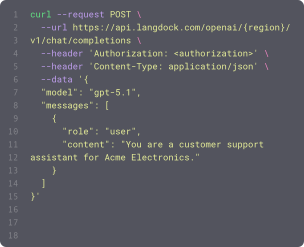
Power your agents and workflows with 57 available integrations and 754 native actions.


Create presentation
Create a new blank Google Slides presentation (with one default slide) and optionally place it in a specific Drive folder; use this to start a new deck before adding slides or content. Returns the new presentationId (the ID needed by every other Google Slides action) plus the object ID of the initial slide, so capture them from the result and pass them to later calls rather than guessing.


Create project
Creates a new project in Asana. Requires a project name. Optionally accepts workspace GID from list_workspaces, team GID from get_teams_for_workspace, owner, color, privacy settings, and dates. Returns the created project with its GID

Create project
Creates a project on a board and phase. Requires a title, a board, and a phase; optionally sets a description, owner, start and end dates, and links to deals, persons, and organizations.
Create project task
Creates a task in a project. Requires a project and a title; optionally sets a description, an assignee, and a due date.


Create pull request
Creates an Azure Repos pull request to review and merge changes between branches.

Create record
Creates a new record in a Dataverse table and returns the created record including its generated primary key.

Create records
Creates one or more records in a table. Requires a base ID, table name, and an array of field values. Returns the created records with their IDs.


Create scheduling link
Creates a single-use scheduling link for an event type that can be shared with invitees.
Create slide
Add a new slide to a presentation with a chosen layout and, optionally, fill its title and body placeholders in the same step (no separate text action needed). Use it whenever you need to insert a slide into an existing deck. IDs: pass the target presentation's ID in presentationId; the action RETURNS the new slide's object ID (slideId) plus the auto-assigned title and body placeholder object IDs (titlePlaceholderId, bodyPlaceholderId, placeholderIds), which you should reuse to style or further edit those elements without re-fetching the presentation.

Create subitem
Creates a new subitem nested under a parent item. Requires a parent item ID and a name for the subitem. Returns the created subitem's ID and name.


Create table
Creates a new table from a cell range. Tables enable filtering, sorting, and structured references.

Create task
Creates a new task in Asana. Requires a task name. Optionally accepts workspace GID from list_workspaces, project GID from get_projects, assignee from get_users, due dates, and custom fields. Returns the created task with its GID

Create task
Creates a new task in a Planner plan or as a private To Do task. For Planner tasks, provide planId or planTitle. For private To Do tasks, set isPrivate=true or provide todoListName.

Create task
Creates a new item on a board with column values pre-filled. Requires a board ID, item name, and column values as JSON. Returns the created item's ID and name.
Create task story
Adds a comment to a task. Requires the comment text and a task GID from search_tasks or typeahead_search. Returns the created comment



Create trigger
Creates a new trigger for an integration. Triggers poll for events and activate workflows.

Create version
Creates a new release version in a Jira project (e.g., 'RELEASE - 1.1.0'). Use this as the first step in a release workflow: create the version, then bulk-update ticket fixVersions to it, then transition tickets to 'Released'. Requires Administer Projects permission.
Create version
Creates a new release version in a Jira project (e.g., 'RELEASE - 1.1.0'). Use this as the first step in a release workflow: create the version, then bulk-update ticket fixVersions to it, then transition tickets to 'Released'. Requires Administer Projects permission.
Create video
Embeds a YouTube or Google Drive video onto a slide in one step; use it to add a video player (YouTube is the common case) to an existing slide. ID flow: pass the target slide's OBJECT ID in slideId (not its number) and the presentation's ID in presentationId; the video's source id goes in `id`. Returns the created video element's object ID (as both objectId and videoObjectId) so you can immediately reposition, resize, or delete it without re-fetching the presentation.
Create wiki page
Creates a new Markdown page in an Azure DevOps wiki without replacing an existing page.
Create work item
Creates a work item in a project. Use list_work_item_types to see valid types such as User Story, Bug, Task, or Feature.


Delete custom object
Deletes (archives) a custom object record. The record goes to HubSpot's recycling bin and can be restored within 90 days.
Delete custom object association
Removes an association between a custom object record and another record.

Delete event
Deletes a calendar event by its ID. For recurring events: pass the series master ID to delete all occurrences, or pass a single occurrence ID to delete only that instance. Supports shared/delegated calendars: pass a colleague's email in 'Shared calendar owner' to act on their calendar (they must have granted you edit rights); leave it empty for your own calendar.

Delete object
Permanently deletes one or more slides and/or page elements (shapes, text boxes, images, tables, lines, charts) from a presentation by their object IDs, in a single atomic batch. Use it to undo or fix mistakes - e.g. remove a wrongly placed image, an extra slide, or a stray text box; deleting a slide also removes every element on it. Every ID you pass must be the exact object ID of something that already exists: get slide object IDs from get_presentation with outputFormat "map" (or the slideId/slideIds returned by create_slide / build_deck_from_outline), and element object IDs from the create_* action that made the element or from get_presentation (outputFormat "map" or "json"). Never invent an ID or pass a slide number. The batch is atomic: if any ID is invalid or missing, the whole call is rejected and nothing is deleted.

Delete permission grant
Revokes and deletes an entire delegated OAuth permission grant (oauth2PermissionGrant) by its grant ID.
Delete record
Deletes a record from a table. Requires a base ID, table name, and record ID. Returns confirmation of deletion.
Delete record
Deletes a Dataverse record by GUID from a specified entity set. This permanently removes the record.

Delete task
Moves a task to the Recycle Bin. The task can be restored later using the update_task action with restore=true.

Describe semantic view
Describes the metrics, dimensions, facts, and relationships on a Snowflake semantic view.
Describe table
Describes a single Dataverse table: its primary ID and name attributes plus its columns (logical name, type, required level). Use this to discover the exact column names before listing, creating, or updating records.
Disqualify lead
Add-on action (Dynamics 365 Sales) — requires the Sales app on the connected Dataverse environment. Disqualifies a lead by setting its state to Disqualified with a status reason such as Lost or No longer interested.
Download attachment
Gets detailed attachment data including name, download URL, view URL, and parent resource. Requires an attachment GID from get_attachments_for_object. Returns complete attachment information needed for accessing the file

Download attachment
Downloads a file attached to a Confluence page or blog post. Use the list attachments action first to get the attachment ID.
Download attachments for object
Downloads all attachments for a project, task, or project brief as base64-encoded files. Requires a parent GID from typeahead_search. Returns file names, MIME types, and base64 content

Download file
Downloads a file shared in Slack, such as an image, PDF, or document. Use the file ID from the files array returned by Get conversation history, Get thread replies, or Search messages. The connected account must have access to the file's channel. Files larger than 100 MB are not downloaded.



Assignee assigned
Triggers when an issue is assigned to someone, and again when it is reassigned to a different person. Optionally scope to a single team.

Call ended
Triggers when a Google Meet call ends, so you can fetch the transcript, send follow-ups, or log the call.
Changed activity
Triggers when an activity is created or updated. You can additionally filter any event to records where a specific field matches given value(s).
Changed deal
Triggers when a deal is created or updated. You can additionally filter any event to records where a specific field matches given value(s) (e.g. Updated with status = won to react to deals becoming won).
Changed lead
Triggers when a lead is created or updated. You can additionally filter any event to records where a specific field matches given value(s).
Changed note
Triggers when a note is created or updated. You can additionally filter any event to records where a specific field matches given value(s).
Changed organization
Triggers when an organization is created or updated. You can additionally filter any event to records where a specific field matches given value(s).
Changed person
Triggers when a person is created or updated. You can additionally filter any event to records where a specific field matches given value(s).

Changes in path
Triggers when files are added or modified in a specific path. Useful for CI/CD pipelines, config monitoring, code review automation, or content tracking.

Changes in path
Triggers when files under a specific path change in a project. Useful for docs or config sync workflows.

File added to folder
Starts when a file or meeting is uploaded or moved into the selected Library folder. Existing contents and edits do not trigger. Connect a personal or workspace API key with Workflow API scope. Personal keys use their owner's folder access. Workspace keys can access folders shared with the key or everyone in the workspace. Use Read folder file for the file, or Get meeting with meetingId for owner, attendees, notes, and transcript.
File updated
Triggers when a file is updated in a SharePoint folder. Re-fires each time a file's contents change, and optionally filter by name or file extension.
Issue state changed
Triggers when an issue moves to a different workflow state (e.g. Todo to In Progress, or In Progress to Done). Does not fire on issue creation. Optionally scope to a single team or workflow state.

Job ended
Triggers when a UiPath Orchestrator job reaches a terminal state (Successful, Faulted, or Stopped). Use to react to finished automations, for example to notify on failures or to process a job's output once it completes.

Label changed on email
Triggers when categories are added to or removed from an email in your Outlook mailbox.
Label changed on email in shared inbox
Triggers when categories are added to or removed from an email in a shared inbox (an owner you have Mail.Read.Shared access to).
New automation idea
Triggers when a new automation idea is created or submitted in Automation Hub. Event data includes newPhase / newStatus (initial pipeline values). Optionally filter by phase, status, category, or application.

New email in shared inbox
Triggers when new emails are received in specified shared inboxes (users you have Mail.Read.Shared access to).
New email in shared mailbox folder
Triggers when emails appear in a specific folder of a shared mailbox (either newly received or moved to it). Requires Mail.Read.Shared permission and folder access.
New email in specific folder
Triggers when emails appear in a specific folder (either newly received or moved to it).

New email matching search
Triggers when new emails matching your search query are received (sent emails excluded unless you add 'in:sent').

New event matching search
Triggers when new calendar events matching the specified search query are created.
New event matching search
Triggers when new calendar events matching the specified search query are created.

New issue
Triggers when a new issue is created in the repository. Does not trigger for pull requests.
New item created
Triggers when a new file or folder is created in a SharePoint folder. Watch files, folders, or both, and optionally filter by name or file extension.

New meeting transcript
Triggers when a transcript becomes available for a recently ended Teams meeting.
New message by search
Triggers when a new message is found by searching for a specific keyword or other criteria.
New message in channel
Triggers when a new message was posted in a channel (public, private, DM, etc.).
New message in conversations
Triggers when a new message is posted in a specific conversation (DM, group DM, or channel).

New message with tag
Triggers when a specific user is @-mentioned in a Viva Engage community, in either a thread starter or a reply.
New reaction in channel
Triggers when someone reacts to a channel message or a reply in its thread. Optionally filter to one reaction type (Unicode emoji like 👍, or a display name like Like). Requires ChannelMessage.Read.All on the connection (granted when a channel-message action such as Get channel messages is enabled).
New reaction in chat
Triggers when someone reacts to a message in a Teams chat (1:1 or group). Optionally filter to one reaction type (Unicode emoji like 👍, or a display name like Like). Requires Chat.ReadWrite on the connection (granted when a chat-message action such as Get chat messages is enabled).
Property changed
Triggers when a property on a HubSpot object (a standard object like a contact, company, deal, or ticket, or a custom object) changes. Watching a specific property fires once per value transition and returns the new value under a key named new_ followed by the property name (e.g. new_dealstage when watching dealstage). Leave the property name empty to fire on any update to the object instead.
Updated automation idea
Triggers when an automation idea is updated (phase/status moves or other edits). Does not fire on create. Event data includes newPhase / newStatus (current values after the update); oldPhase / oldStatus are null because the Open API does not expose prior values. To watch ideas going Live, set Phase ID to your tenant's Live phase ID from a Search automation ideas card.
Updated issue
Triggers when an existing Jira issue is modified (e.g., status change, field edit, reassignment). Does not fire for newly created issues — use "New issue" for that.
Actions
Triggers
Actions
Triggers
Actions
Triggers
Actions
Triggers
Actions
Triggers
Actions
Triggers
Actions
Triggers
Actions
Triggers
Actions
Triggers
Actions
Triggers
Actions
Triggers
Actions
Triggers
Actions
Triggers
Actions
Triggers
Actions
Triggers
Actions
Triggers
Actions
Triggers
Actions
Triggers
Actions
Triggers
Actions
Triggers
Actions
Triggers
Actions
Triggers
Actions
Triggers
Actions
Triggers
Actions
Triggers
Actions
Triggers
Actions
Triggers
Actions
Triggers
Actions
Triggers
Actions
Triggers
Actions
Triggers
Actions
Triggers
Actions
Triggers
Actions
Triggers
Actions
Triggers
Actions
Triggers
Actions
Triggers
Actions
Triggers
Actions
Triggers
Actions
Triggers
Actions
Triggers
Actions
Triggers
Actions
Triggers
Actions
Triggers
Actions
Triggers
Actions
Triggers
Actions
Triggers
Actions
Triggers
Actions
Triggers
Actions
Triggers
Actions
Triggers
Actions
Triggers
Actions
Triggers
Actions
Triggers
Actions
Triggers
Actions
Triggers
Actions
Triggers
Actions
Triggers
Actions
Triggers
Actions
Triggers
Actions
Triggers
Actions
Triggers
Actions
Triggers
Actions
Triggers
Actions
Triggers
Actions
Triggers
Actions
Triggers
Actions
Triggers
Actions
Triggers
Actions
Triggers
Actions
Triggers
Actions
Triggers
Actions
Triggers
Actions
Triggers
Actions
Triggers
Actions
Triggers
Questions & answers
What can I do with Langdock integrations?
Integrations let you connect Langdock to your existing tools so your agents and workflows can search documents, trigger actions, update data, or automate workflows across your apps.
Which tools can I integrate with Langdock?
Langdock supports a wide range of popular workplace tools like Google Drive, Notion, Confluence, Slack, Salesforce, Jira, Asana, and more. You can also build fully custom integrations for any API‑enabled tool.
Do I need to build my own integrations?
You don’t have to. Many integrations are plug‑and‑play. But if you want custom functionality or custom actions, Langdock includes a built‑in integration builder that makes it easy to create your own integration logic with guided JavaScript support.
Are integrations secure?
Absolutely. Langdock uses secure authentication (including OAuth 2.0), handles credentials safely, and runs custom code in a sandboxed environment. Langdock is also ISO 27001 certified, SOC 2 Type II audited, and GDPR compliant.
How do I use integrations inside a chat or agent?
Once connected, you can use integrations directly in any chat by typing @ to trigger available actions. Agents can also call integrations automatically based on their instructions.