Microsoft Teams App
We are bringing Langdock even closer to where many of you collaborate every day by adding Langdock to Microsoft Teams 🤝
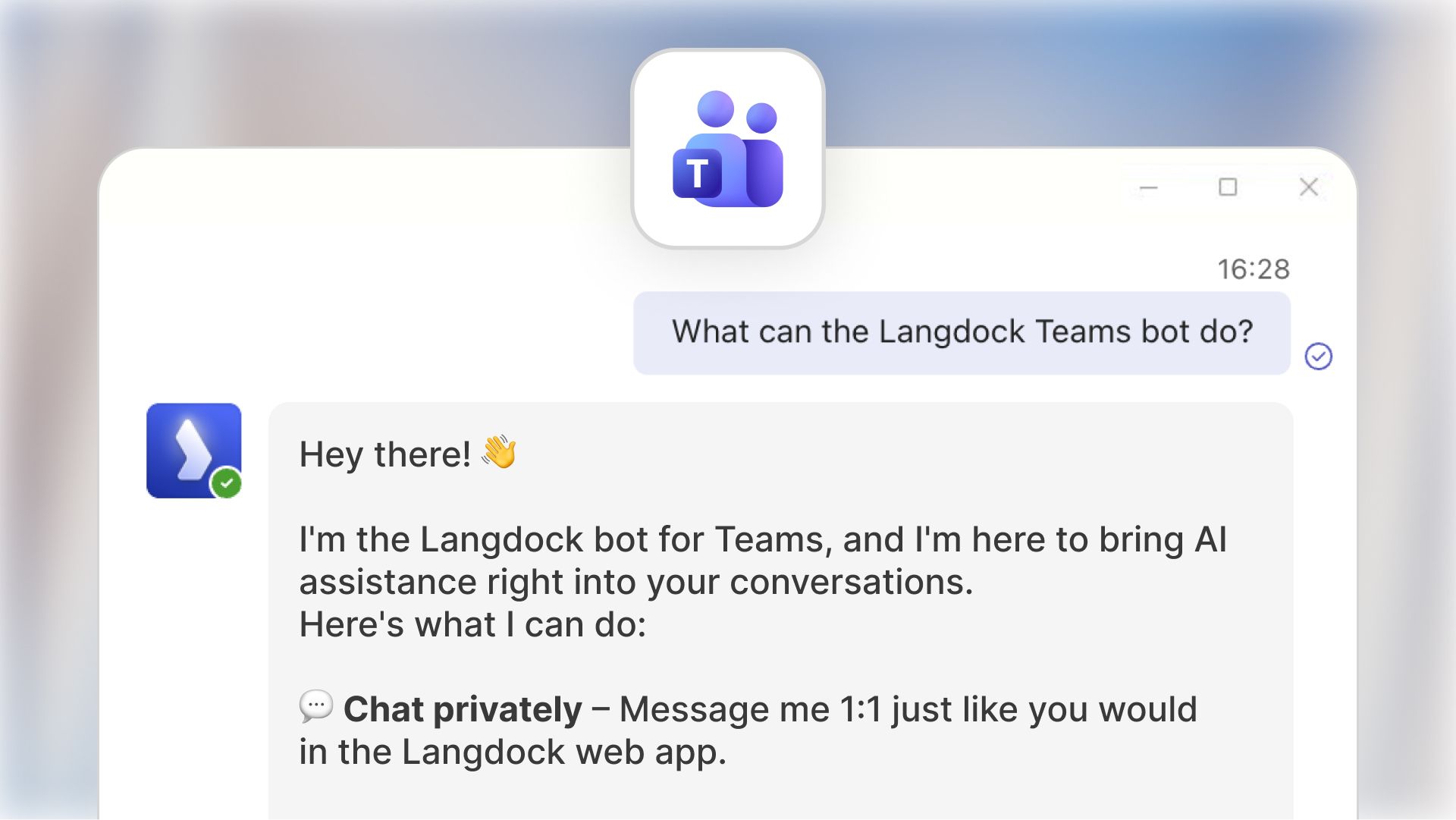
With the new Microsoft Teams App, your team can now use Langdock models and Agents directly inside Teams - in a private chat or collaboratively in channels. This especially helps with small ad-hoc situations every day. Example use cases are translating text really quickly or researching smaller topics without needing to open Langdock.
How to use the Teams App
Private conversations with Langdock App
Chat 1:1 with Langdock just like in the web app - full context, full capabilities, zero friction. Click on “New chat” and type “Langdock” to open a chat with the app.
Channel collaboration with @Langdock
Alternatively, you can pull Langdock into any channel you have (channels for a specific topic, indicated by a main message and thread with replies to this message). The app only reads the entire thread once mentioned with @, to help you with the current topic.
Working with the App in chats
You can also work with the app in chats you have with other users. Here, you can also tag the app with @ and then your prompt. The model can only reference this individual message, but not the entire chat.
Main Features
Selecting your default model
When pulling the app in your chat, you can either use the default model (e.g., GPT-5.1) or select a specific agent. The model is a good default for quick needs like explanations or smaller questions.
Agent selection inside Teams
Start a conversation with any Langdock Agent - from Translators to HR FAQ Agents - directly inside Teams.
File & image support
Upload documents or images in Teams messages - Langdock can read and analyze them just as it does in the web app.
Why we built the Teams App
Many teams use Microsoft Teams to collaborate and communicate with others. Many users have requested a way to use Langdock in Teams, as they already use the app several times a day. Teams becomes a natural extension of Langdock to help your team collaborate faster, and embed Agents into everyday workflows - from shared problem‑solving to specialized channel setups.
How to get started
Your workspace admin can install Langdock from the Teams Admin Center.
After installation, users can simply search for Langdock in the Teams apps.
If you want to dive deeper, check out the setup guide and usage guide.
We’re looking forward to your feedback on this one! 🙌